A guided product demonstration
Follow one kitchen renovation.
See why planned costs, approved commitments and payments belong in separate columns. Then follow the decisions and changes behind those numbers.
Fictional example in USD. This interactive walkthrough explains the workflow; it is not an online version of the Excel product. Figures are examples, not renovation cost estimates.
Watch the 30-second overview
Silent overview with on-screen text. The guided steps below provide the text alternative.
Have your own quote? Create your questions first →
1. Give the project a starting point.
Maple House kitchen
Base budget: $30,000
Contingency: 10% / $3,000
Working budget: $33,000
Illustrative project dates: 2–30 November 2026.
In your workbook
Read START. In the complete system, enter project details and budget settings in SETUP. The starter uses START for its budget setup.
Use one currency throughout. A changed currency label does not convert amounts.
2. An approved quote is the full commitment.
For cabinetry: planned $12,000; full approved cost $12,500; deposit paid $3,750. Still to pay is $8,750. These are three views of one cost, not amounts to add together.
| Item | Planned | Committed | Paid |
|---|
Available is working budget minus committed costs. It does not reserve money for future uncommitted work.
3. Keep decisions and deliveries visible.
A decision
Choose the worktop finish by 5 November. Homeowner owns the decision.
Record it in DECISIONS. Confirm the choice before the template visit.
A dependency
Worktop template visit: 9 November. Base cabinets must be fitted first.
Record the task in PLAN and the order and confirmed delivery date in PURCHASES. These are records you maintain.
See the actual Excel dashboard
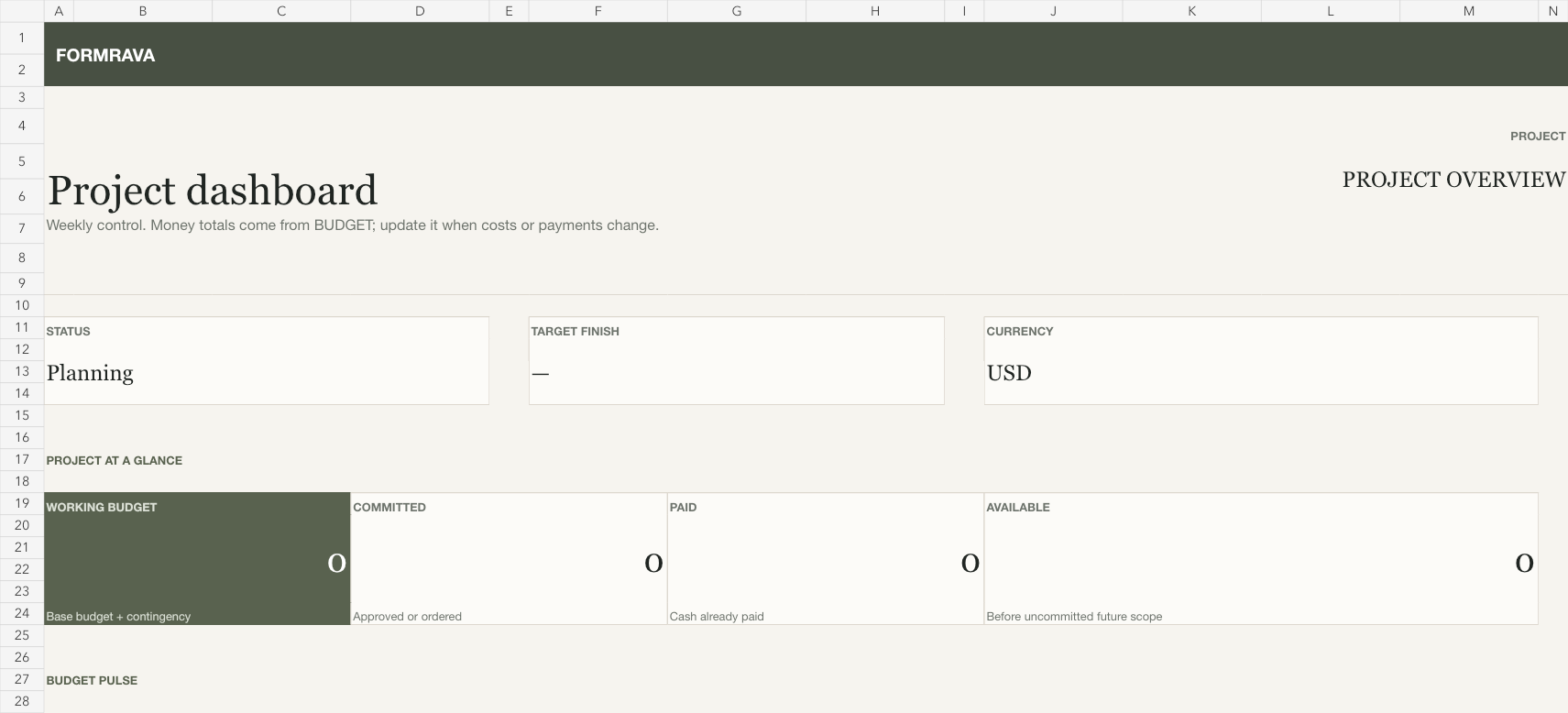
Actual product view. This image shows the template, not the example figures above.
4. Try approving a $900 cabinetry change.
A proposed change stays in CHANGES until you decide. After approval, update BUDGET and any affected PLAN dates manually.
The teaching display updates here. In the Excel product, update the relevant BUDGET entry yourself. Do not record the same $900 both as a revised total and an additional duplicate line.
5. Finish with a weekly review.
- Check new commitments and cumulative payments in BUDGET.
- Review decisions, blocked tasks and active delivery risks.
- Choose three priorities for the coming week.
- At handover, inspect each closeout item. In the full system, use Closed and Verified = Yes after checking the work.
Example: the installer says the cabinet door is fixed. Inspect the door before marking it verified.
Organise the full renovation.
11 Excel sheets + 5 PDF guides. $59, one-time purchase.
Get the complete system — $59Read the getting-started guide · Tell us what was clear or confusing
Use it for your own project
Keep the detailed records together.
The full eleven-sheet Excel workbook, five PDF guides and Learning Kit are available for $59 USD as a one-time download. Microsoft Excel access is separate.